Project settings
A project's name, platforms, icon, the word for its people, environments, verified Apple and Android apps, retention and keys.
A project holds the events of one product: an app, and its website and backend if they have
them. Each project has a random public id, like 3f9a1c7e20bd, that names it in dashboard
addresses and in the API. It says nothing about the project.
Open Project settings from the project's menu or the command menu. Everyone in the project's organization can see the settings; only an owner can change them.
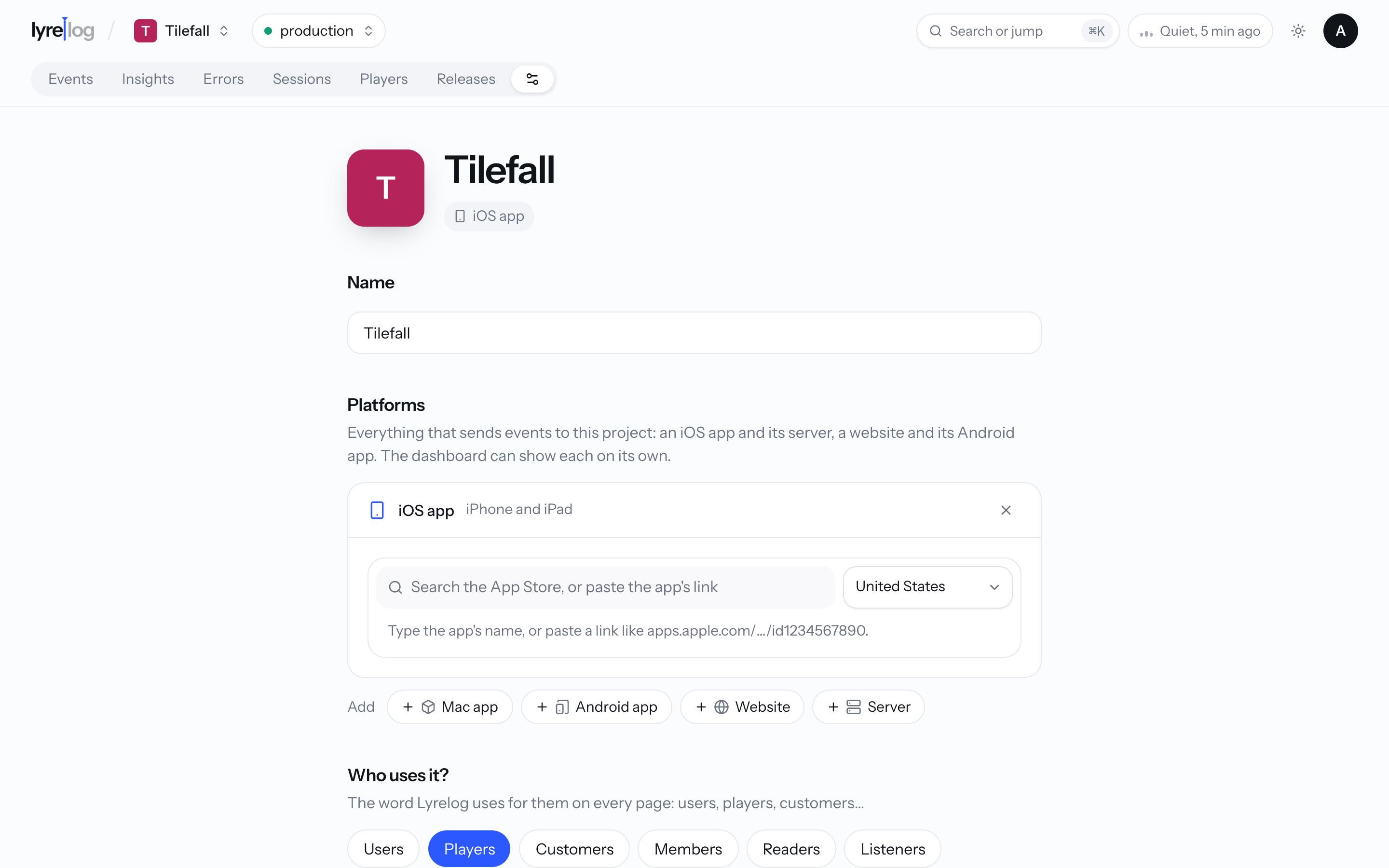
Name
The name shown everywhere in Lyrelog.
Platforms
Everything that sends events to this project. Add each one with Add: iOS app, Mac app, Android app, Website or Server. One project can hold an app, its website and its backend, and the dashboard can show each on its own (see Platforms). Remove a platform with its × button.
If events arrive from a platform that isn't set up yet, the section says so and offers to add it.
Each platform has its own details:
| Platform | Details |
|---|---|
| iOS app, Mac app | Its App Store listing. Search the App Store, or paste the app's link (apps.apple.com/…/id1234567890), and pick the App Store country to search in. Linking takes the app's name, link and icon from its listing. Unlink undoes it. |
| Android app | Its package (com.example.app) or its Google Play link. If the app is on Google Play, Lyrelog takes its name and icon. |
| Website | Its address (example.com). Lyrelog takes the site's icon if it has one it can use. |
| Server | Its language: Node, Python, Go, Java, Kotlin, Swift, Ruby, PHP, .NET, Rust, Elixir or Other. |
Lyrelog's server does the App Store, Google Play and website lookups. Your browser only loads the images.
Who uses it?
What to call them: the word Lyrelog uses for your people on every page. Pick users, players, customers, members, readers, listeners, students or clients, or Another word (singular and plural). The default is users.
Icon
Shown beside the project everywhere in Lyrelog. Take it from one of the project's platforms (App Store, Google Play or Website, when they have one) with Use this one, or upload your own: drop an image or choose one, square, PNG, JPEG, WebP or GIF, up to 1 MB (no SVG). Remove takes away an uploaded icon.
Environments
Development, test and production builds send to the same project, and each event says which one
it came from. Default environment is the one the dashboard opens on until someone picks
another in the top bar. It is production unless changed; it can also open on all
environments. The section explains how each SDK decides an event's environment (see
Environments).
Verified events from your Apple apps
Shown when the project has the iOS app platform. Add the App ID of each of your Apple apps,
up to 10: your Team ID, a dot and the bundle id, like ABCDE12345.com.example.app. The Team ID
is in your Apple Developer account, under Membership. With an App ID set, the
Swift SDK (also under React Native and Flutter) proves with Apple's App Attest that
events come from your own app on a real iPhone, iPad or Apple Watch, and they arrive
verified. The app also needs the App
Attest capability. With no App ID, events from your apps arrive unverified. Remove one with its
× button.
Below, Accept only verified events from the iOS app (off by default, and only once an App ID is set) holds back unverified events from the iOS app until they can prove themselves. Leave it off while people still use a version without App Attest: what it does.
Verified events from your Android apps
Shown when the project has the Android app platform. Add each app's package, like
com.example.app (filled in from the Android app platform, when it has one), with the
SHA-256 fingerprint of a certificate it's signed with (as Play Console shows it,
AB:CD:...). Add the same package again for each certificate that signs builds
that send events: up to 5 per package, and up to 10 packages. With one set, the
Android SDK (also under React Native and Flutter) proves with Key Attestation that events come
from your own app on a real Android device, and they arrive
verified. With none, events from your
Android apps arrive unverified. Remove a certificate with its × button.
Below, Accept only verified events from the Android app (off by default, and only once a package is set) holds back unverified events from the Android app until they can prove themselves. Leave it off while people still use a version without Key Attestation: what it does.
Keep events for
7, 14, 30, 60, 90 or 180 days, or 1 year. Older events are deleted on their own. Lengthening applies right away. Shortening asks first, because events older than the new limit are deleted for good, within a few hours. See Retention.
Plan
The organization's plan and its events this month. Every project in an organization shares the plan, so their events count together. See Plans and usage.
People with access
Everyone in the project's organization sees all its projects. This section links to the organization's page, where owners invite people and change their roles. See Organizations.
API keys
API keys: the keys your apps send events with, and the ones scripts read them with. Create one with a name and a scope (Send events, Send events from a server, Read events, Full access), copy it while it is shown, and revoke it when it is no longer needed. Each key shows when it was last used. See Keys.
Details
The project id, its slug, how long events are kept and when the project was created.
A person's data
Find one of your people by their user id, download their events, or delete them, to answer a privacy request. The section's name uses the project's word ("A player's data"). See A person's data.
Danger zone
Only owners see it. Delete the project.