Command menu
Press ⌘K to find an event, a person or a session, or to jump to any page.
Press ⌘ K (Ctrl K on Windows and Linux) anywhere in the dashboard, or click the search pill in the top bar.
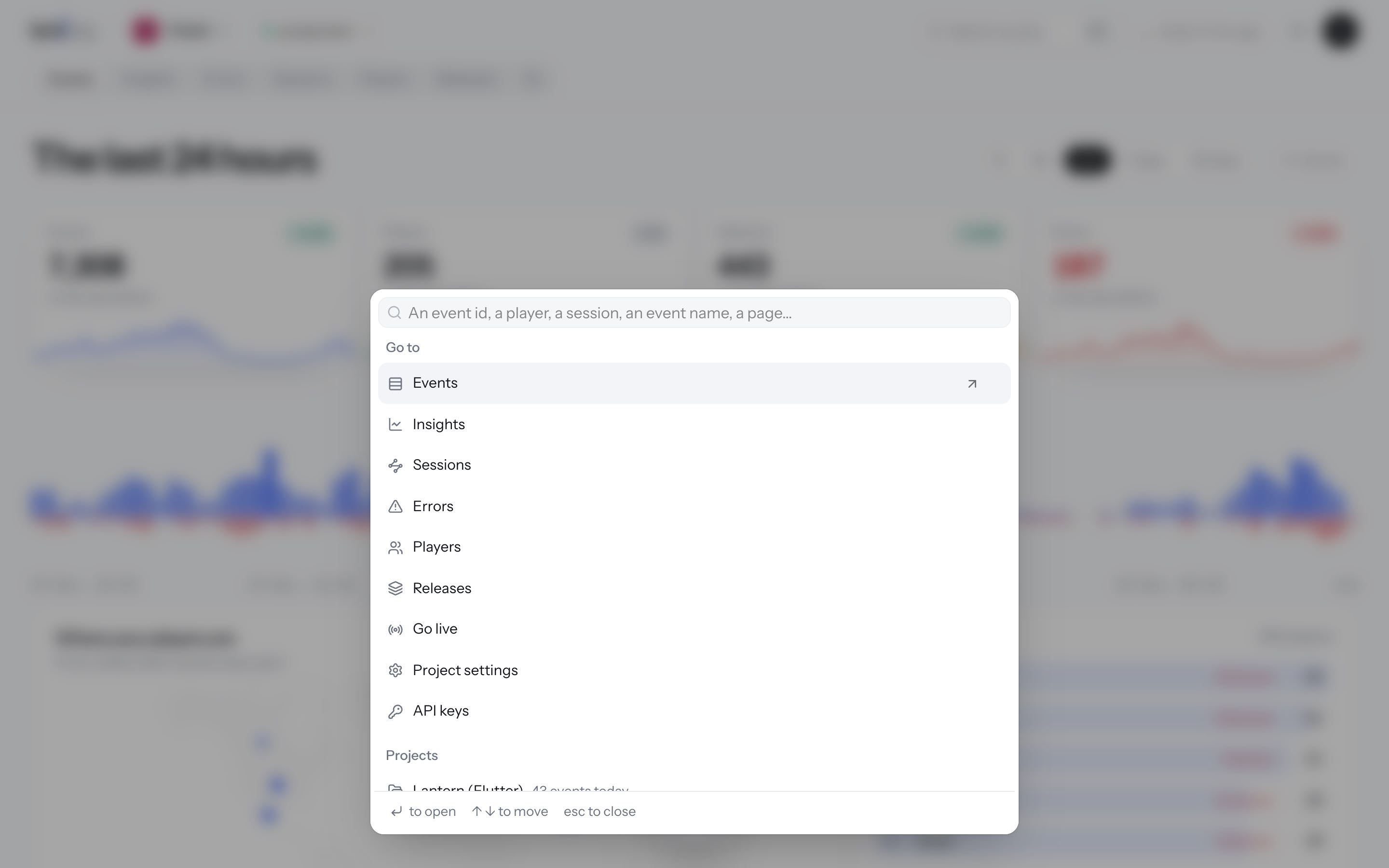
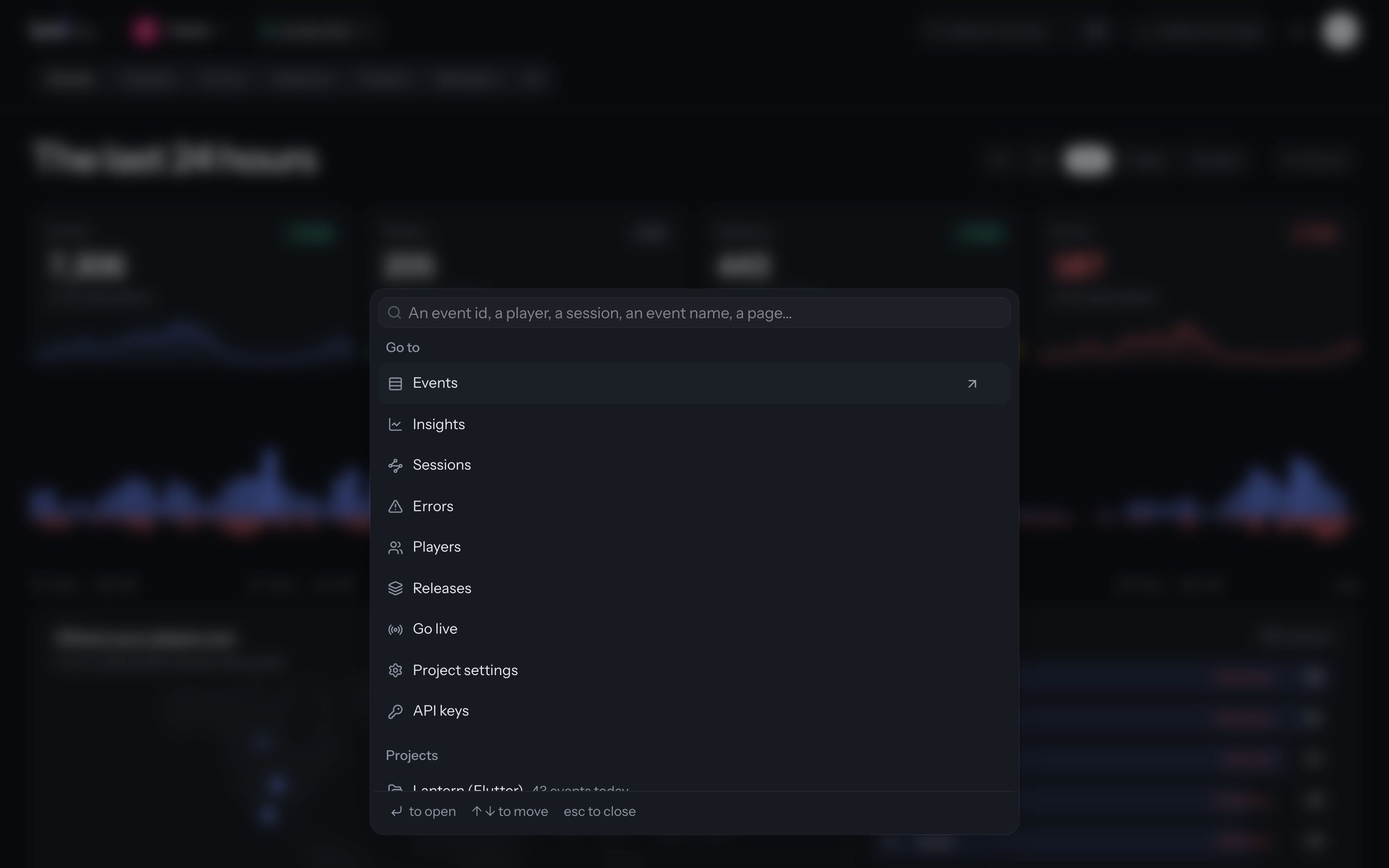
Find
Type or paste at least two characters:
- An event id: opens it on its person's page, or shows its session in the explorer when it has no user.
- A user id (named with your project's word): opens that person's page.
- A session id, or its start: opens the session on its person's page.
- An event name: lists events named like it. Pick one to search for it.
- An area: lists matching areas. Pick one to filter the explorer by it.
Search "…" in runs the text in the explorer instead: as a search of event names, as a user id, or as a session id. A pasted event id that isn't found offers a search over the last 30 days.
Jump
Go to lists the project's pages: Events, Insights, Sessions, Errors, the people page (Users, Players...), Releases, Project settings and API keys, plus Go live on the explorer. Type to narrow the list.
Projects opens another project. Appearance switches between the light and dark theme.
Move with the arrow keys, open with Enter, close with Esc.
The account menu
The round button with your initial, at the right of the top bar, opens the account menu:
- Light, Dark or Match the system: the dashboard's appearance.
- Text size: three sizes, Default, Large and Extra large, for the whole dashboard.
- Your account, Organization and Plan and usage, and signing out.
The appearance and the text size are remembered in this browser, not in your account.