Events explorer
Search what happened, narrow it down with filters, and open any event.
The Events page is where a project opens (app.lyrelog.com/p/<project id>). From the top:
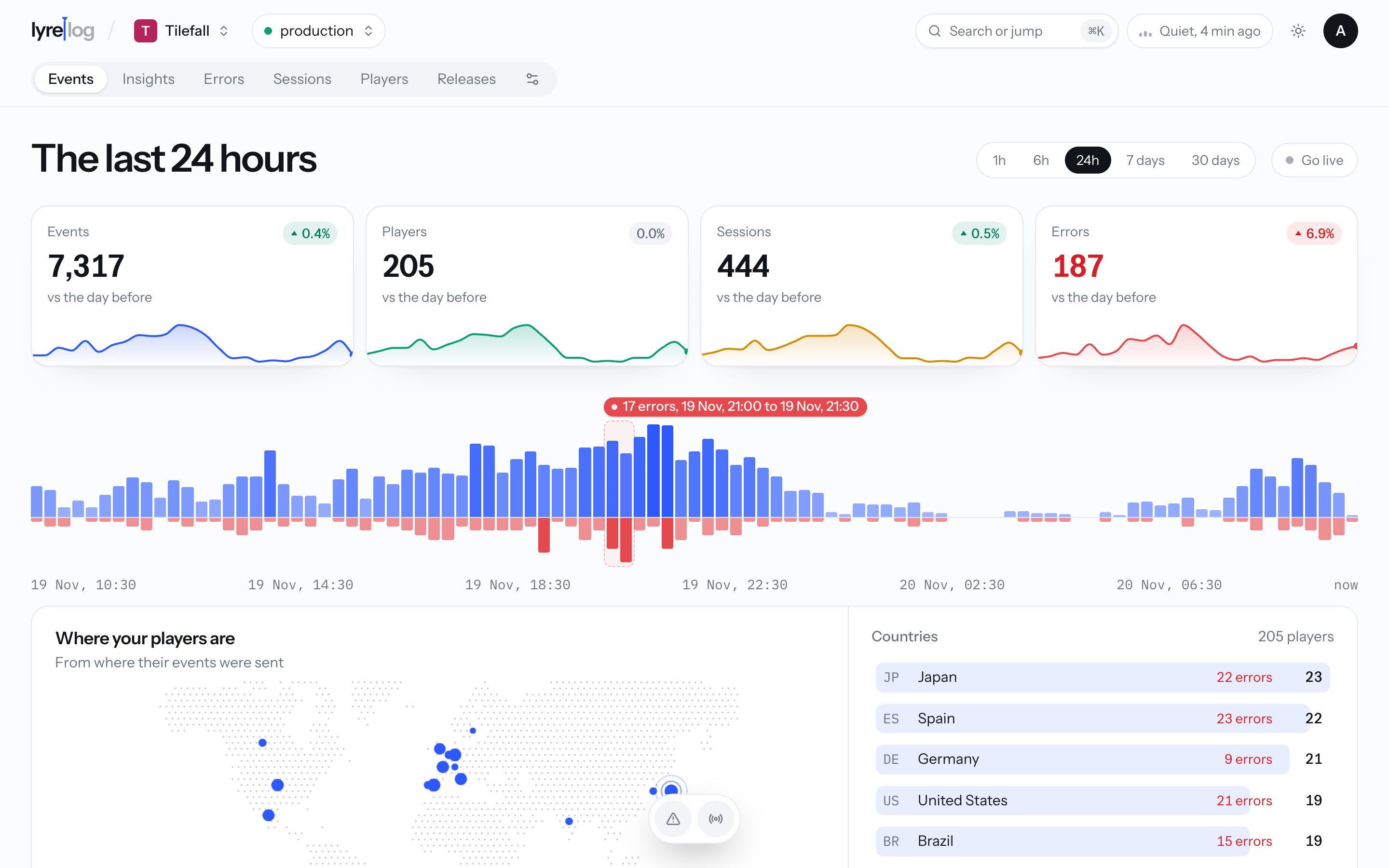
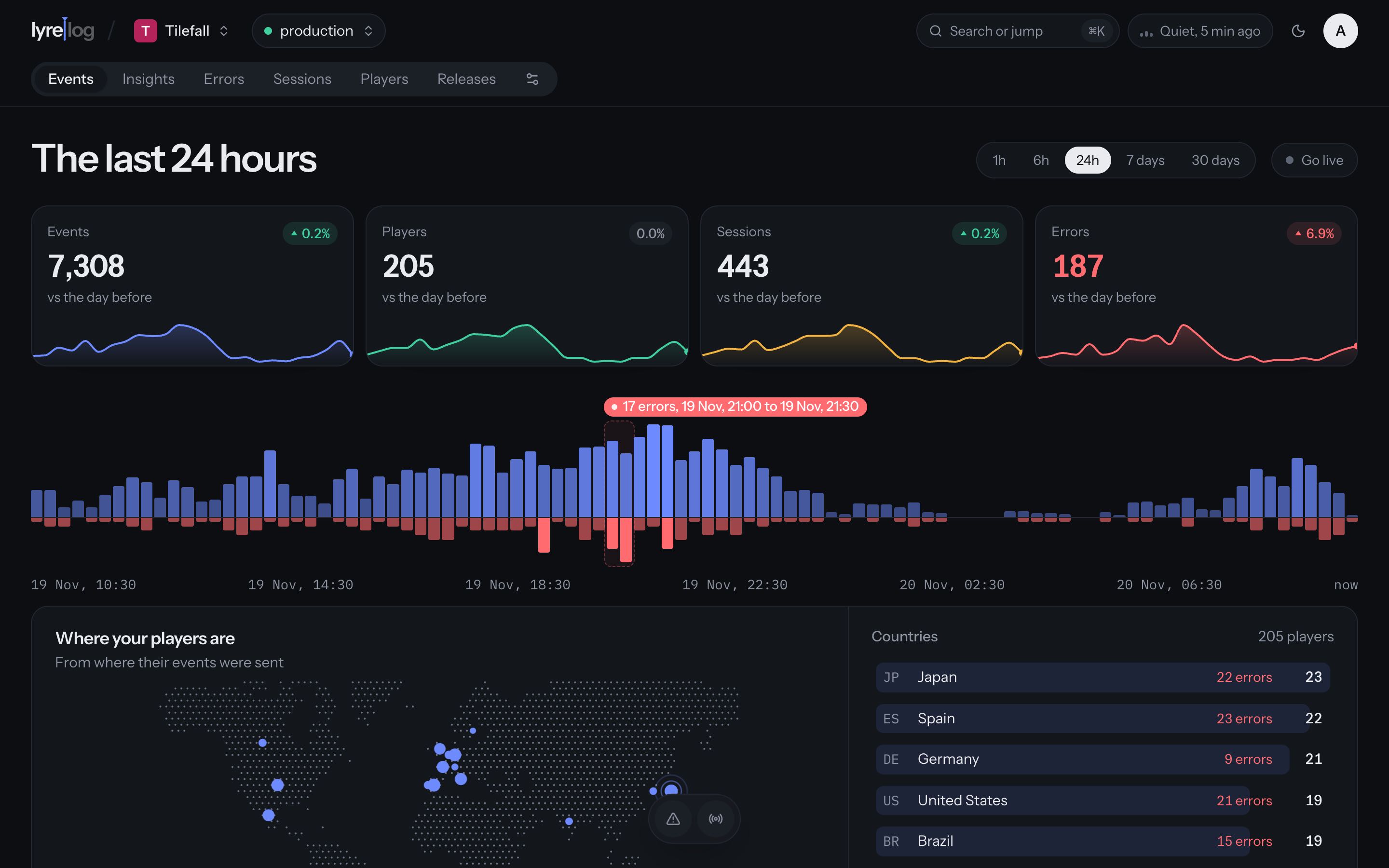
four cards, a chart of the range, where people are, and the list of events, newest first.
Like every page about events, it shows the environment and platform picked in the top bar.
Time range
Pick the last hour, 6 hours, 24 hours, 7 days or 30 days. The page opens on 24 hours.
Drag across the chart to zoom into a moment; Zoomed in, reset goes back to 24 hours. When errors jump, the chart marks the stretch with a note such as "12 errors, 10:40 to 10:55": click it to zoom in there.
Go live follows new events as they arrive. Click it again to stop. It works only on the preset ranges, not on a zoomed-in one.
The cards
Events, Users (your project's word for its people), Sessions and Errors in the range, each with a small trend. On a preset range each card also compares with the period just before ("vs the day before").
Click Errors to see the most frequent errors and the errors by area. Pick one to filter the list by it.
Where people are
A map of where your people are, with a ranked list of countries. A person's country comes from their events, else from their device's region. See Countries.
Search
The search box (press / to focus it) looks in event names and areas, and matches any id you paste exactly: an event id, a user id, a session id or an install id.
Paste an event id from outside the range and the page tells you when it happened, with Show it to jump there.
Filters
Choose Filter by… and a field, then pick one or more values. The menu lists the values found in the current range, with their counts.
| Field | What it matches |
|---|---|
| Area | The event's category |
| Level | Any set of levels |
| Event | The message (event name) |
| User | The user id (named with your project's word: Player, Customer...) |
| Session | The session id |
| Platform | ios, web, python... |
| App version, OS version, Device | From the event's context |
| Country | Where the person is: the country, else the locale's region |
| Locale | The device's locale |
| Attribute | Anything you sent in attrs, by its path (gc.ok) |
Each filter becomes a token above the list, like "Area is any of checkout, sync". Click a token to change it, or its cross to remove it. Clear all removes every filter.
- Several values in one filter mean "any of these".
- Is not excludes them instead: "Area is not sync, chat". Every field except Level offers it.
- Attributes work the same way: pick an attribute name, then its values.
Under the search, the most frequent areas show as chips: click several to see any of them, or All areas to clear. The level chips on the right toggle levels on and off. The floating dock at the bottom has Only errors, Go live and Back to the top.
Filters live in the URL, so a filtered view can be bookmarked or shared with someone on the project. The environment and platform picked in the top bar aren't part of the link: whoever opens it sees their own choice.
Breakdown
Breakdown shows the most frequent events and the spread by app version, OS version, device and locale for what's on screen. Click a value to filter by it.
Opening an event
Click an event (or move with j and k, close with Esc) to see it whole:
- The header: its level, area, time and name, with buttons to filter by This user, This session or its device, a copy button for the event id, and Play back the session when it has a user and a session.
- Attributes: each one with Only events where... and Hide events where..., and a copy button.
- Payload, pretty-printed, if it has one. Raw event shows the whole event instead, and Copy as JSON copies what's shown.
- Context: the user (a link to their page), the session and its length, the app version and build, the system, the device and the locale.
- Around this moment: the event's session as a strip, with the events just before and after it.
An event without a session was reported outside one, such as a crash report that arrives on the next launch.